Hi there👋
If you’re visiting Korea, one thing you should know is:
most Koreans use Naver Maps or Kakao Maps way more often than Google Maps.
So today, I’ll show you how to use Naver Maps – the one I personally use the most ⭐️
1. Downloading the App
You can download Naver Maps from:
◼︎ App store (iOS)
◼︎ Google Play Store (Android)
Just search for “Naver Maps”
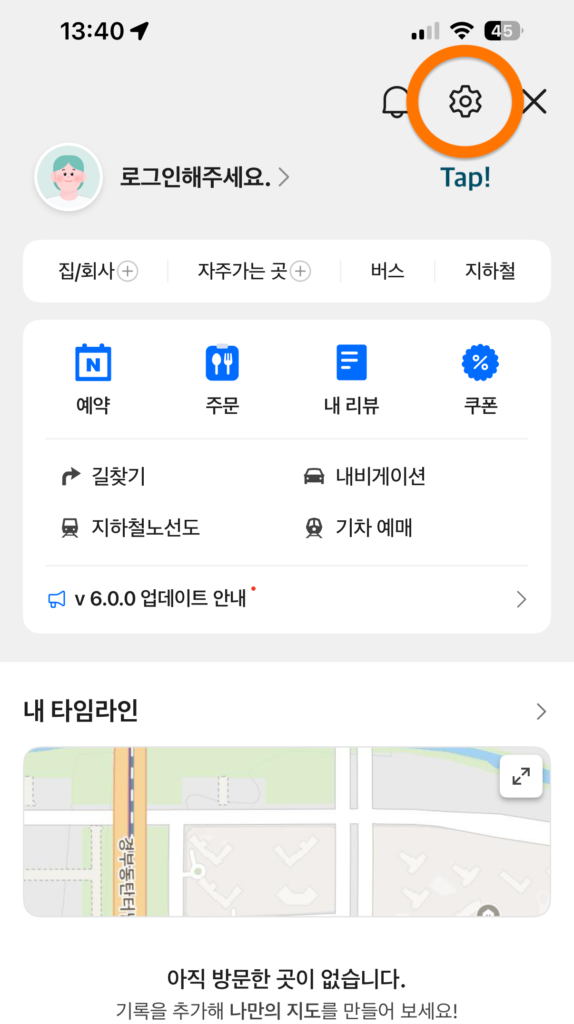
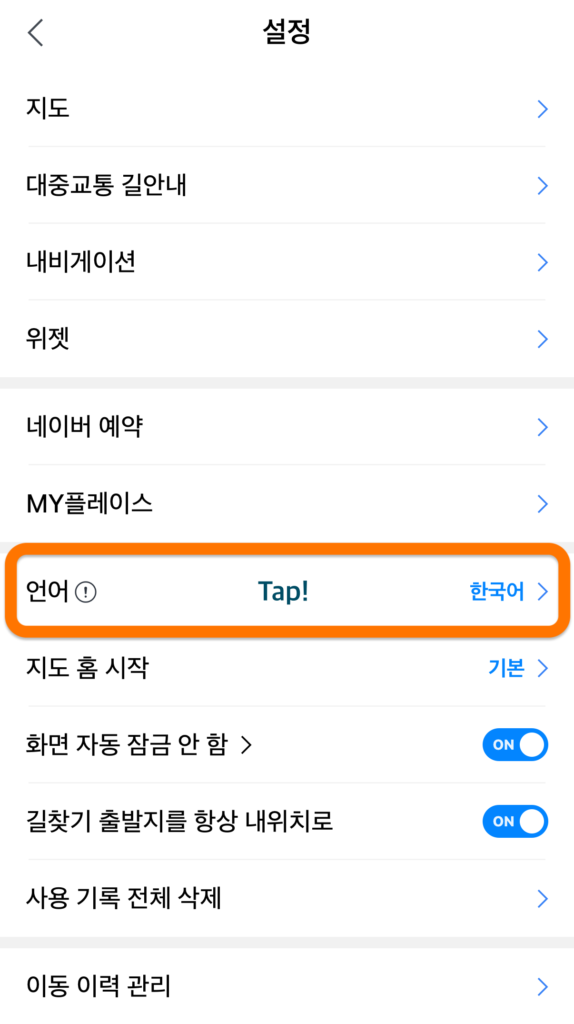
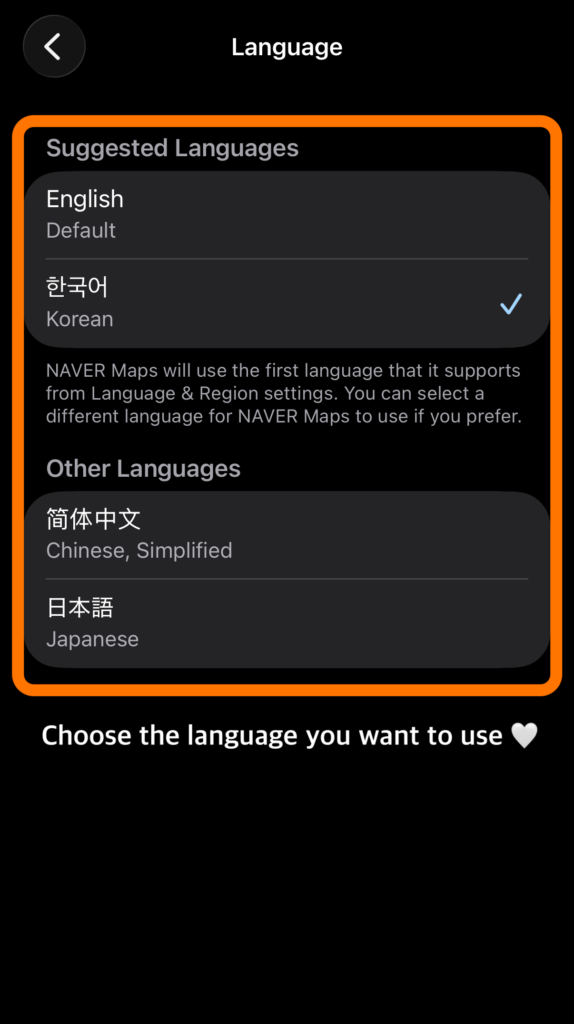
2. Language Settings 🔆
I screenshotted each step and highlighted everything you need to tap in orange,
so you can follow along easily! ✨


3. Sort options / Pin your route
Once you enter your route,
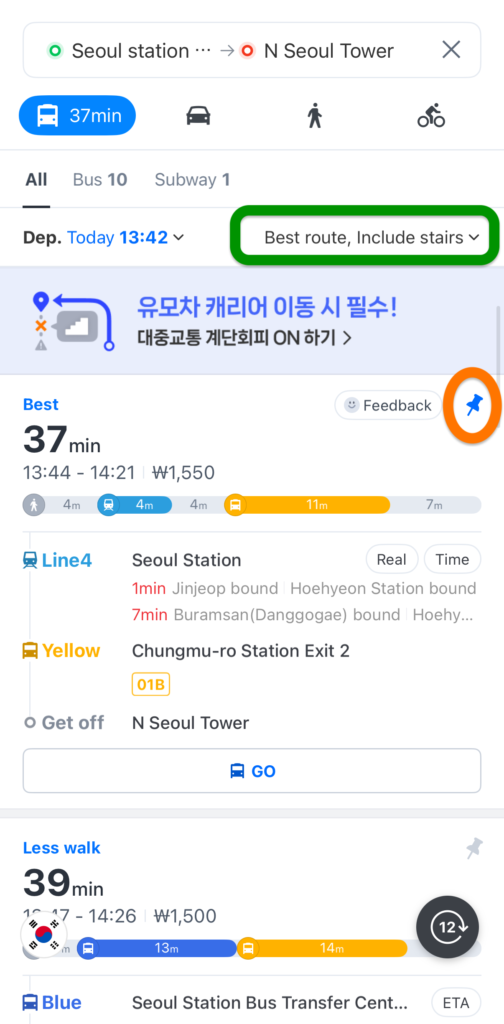
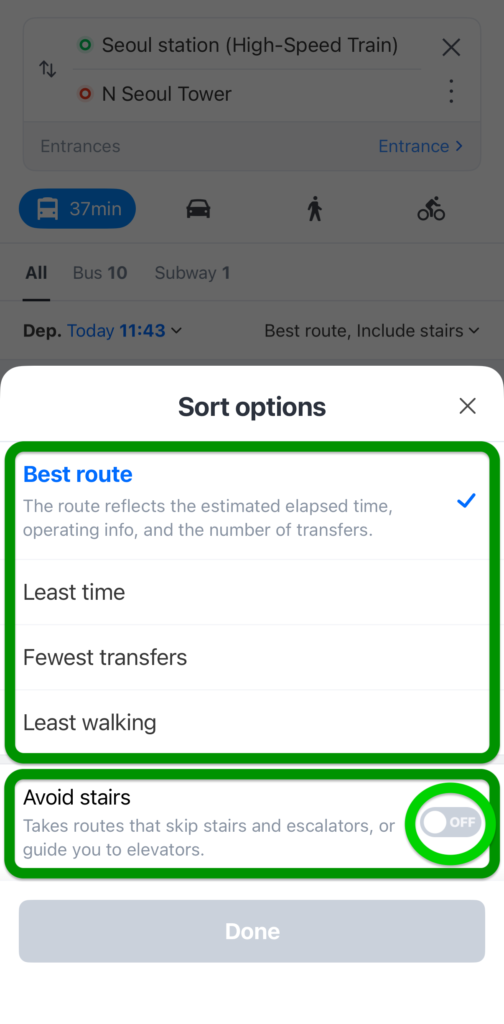
✔️ You can sort the route options. (Highlighted in green 🟢)
There are several choices – for example, Least time, Fewest transfers
And if you prefer not to use stairs, you can also turn [Avoid stairs] ON❗️
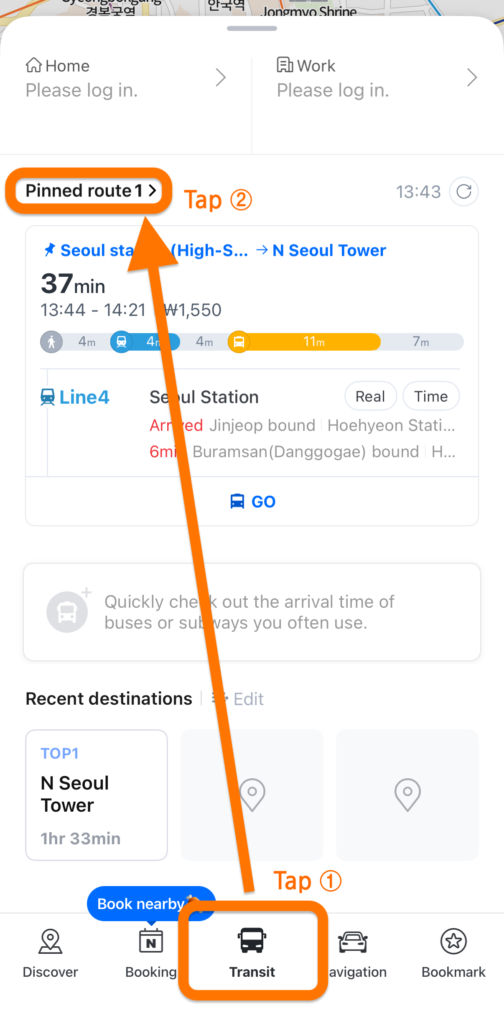
✔️ If you find a route you want to save, you can pin it! (Shown in orange 🟠)
Just tap the pin icon, and your route will be saved.
Later, you can open the [Transit] menu and check your pinned route anytime!
4. Save Your Favorite Places (Naver login required)
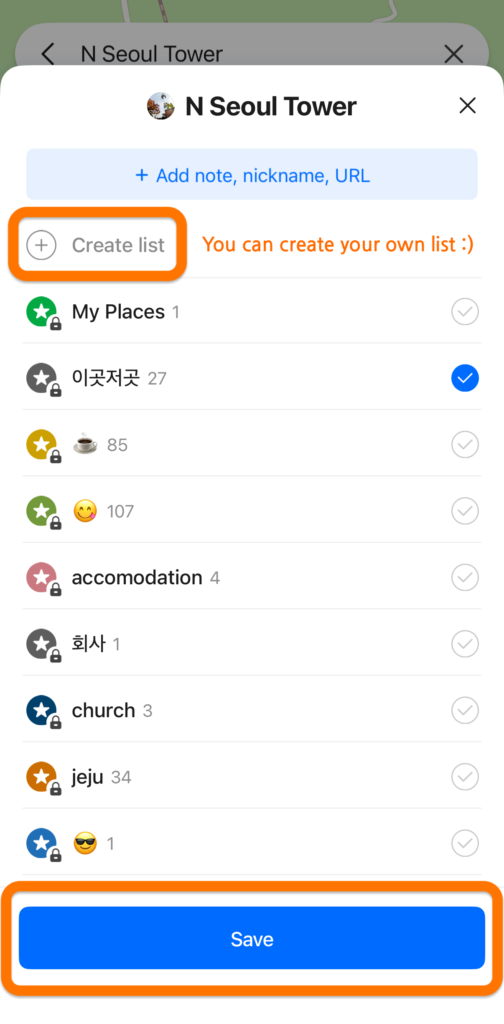
✔️ Want to save places for later? Just tap the star icon(🟠) → Save
You can even create your own list — super useful!
✔️ What about the other star highlighted in green(🟢)?
It lets you show or hide all the places you saved on the map.


📍 Korean Rush Hour Tip!
⏰ Weekdays 8–9 a.m. (morning) / 6–7 p.m. (evening) = super busy!
If possible, try leaving a bit earlier – it’ll save you time 😆
Thank you for stopping by!
Hope you have a warm, peaceful day :)✨